Vegetation
This section describes how to populate and manage vegetation at scale while maintaining readability and performance.
4.1 Core concepts
- The Forest system instantiates vegetation with density, randomness, and environmental filters
- Vegetation assets require correct pivots, scale, and optional simplified collisions
- Impostors/billboards are used for far-distance representation where available
4.2 Requirements and conventions
- Vegetation assets should be authored at real scale with pivots at logical bases (e.g., tree roots)
- Collisions should be lightweight where needed, omitted for small clutter where safe
- Species and variants should be limited to control draw calls and memory
4.3 Biome composition
- Organize vegetation into logical layers (canopy, understory, ground clutter)
- Use slope and altitude constraints to place species believably
- Maintain a controlled palette to avoid visual noise
- Biome tool can help setup everything for the modder
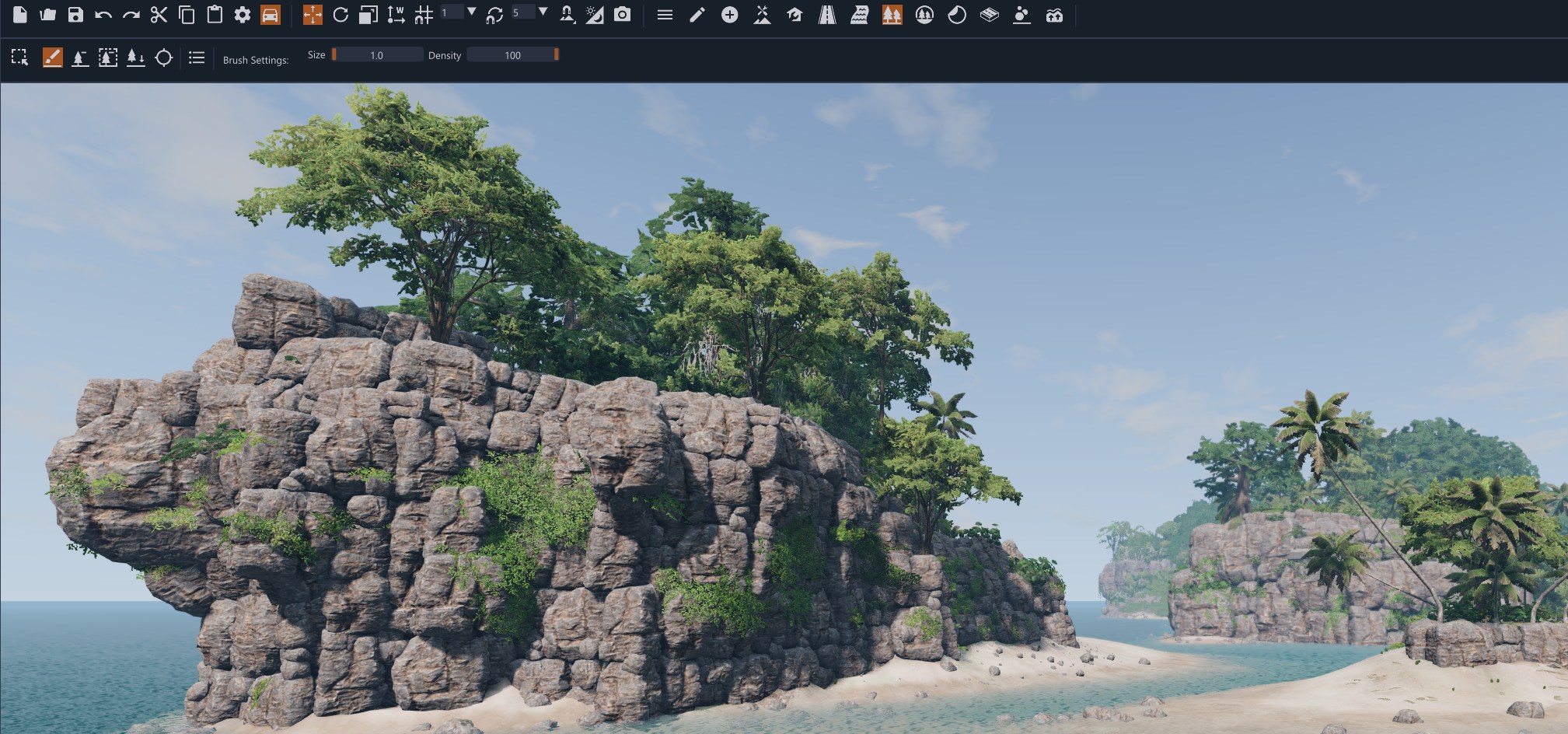 Forest tool and Biome tool interface
4.4 LOD and impostors
- If the modder wants to create a personal foliage element, LODs need to be provided for heavy meshes. Use impostors or distant representations where available and see how to setup the wind control to make it more believable
Foliage wind interaction is setup through vertex painting in Blender directly on the mesh. User can only change the Wind parameters controls on already available assets.
Wind setup on custom foliage meshes is an advanced feature that can’t be changed inside World Editor. An external authoring software like Blender is needed.
- Set fade distances to minimize popping at driving speeds
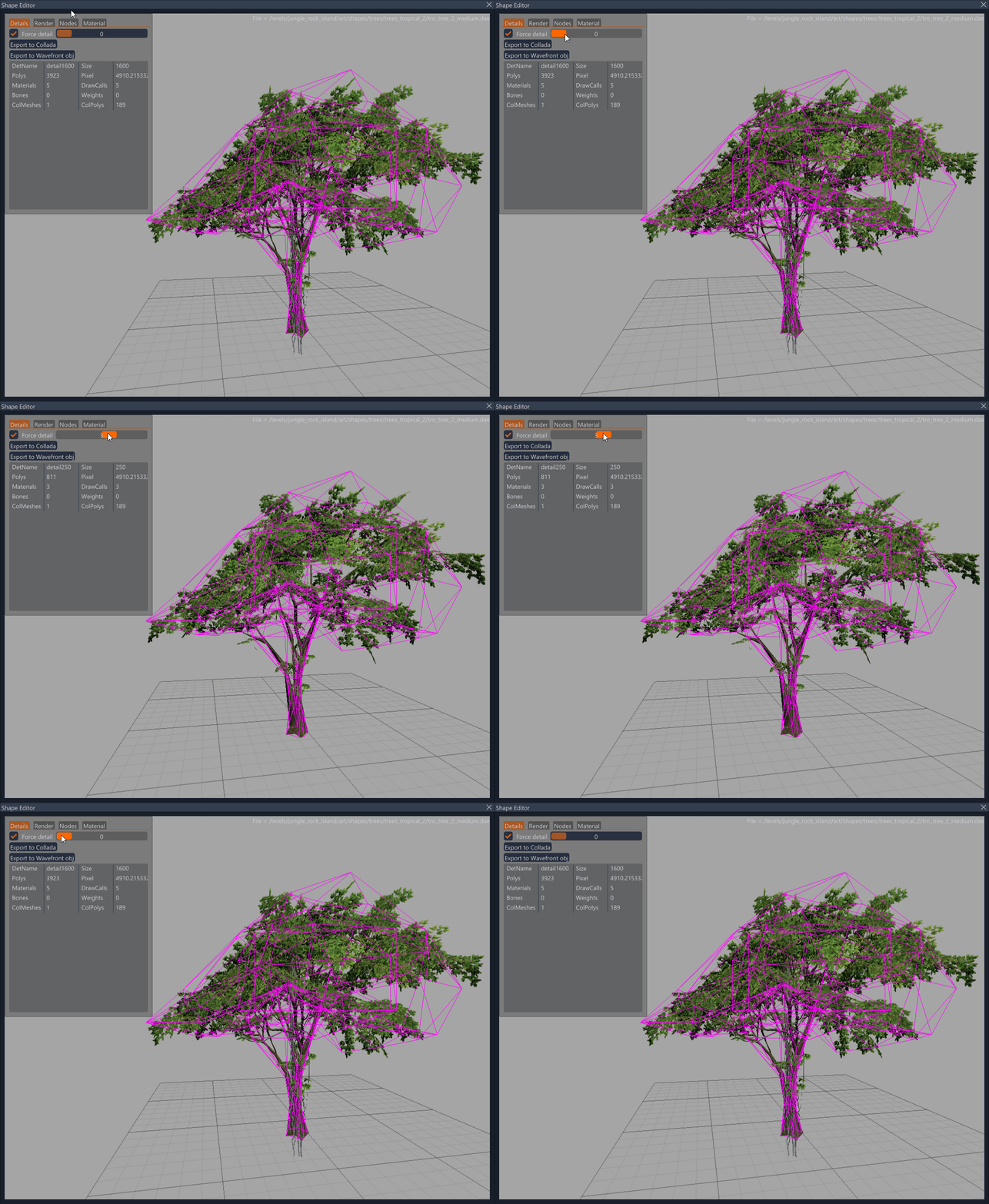 Foliage wind setup with the shape tool
4.5 Setup the Forest tool
- First step is to add Meshes that modder wants to use as Brushes. Meshes are simply a list to pick from and setup the parameters for every single forest element added
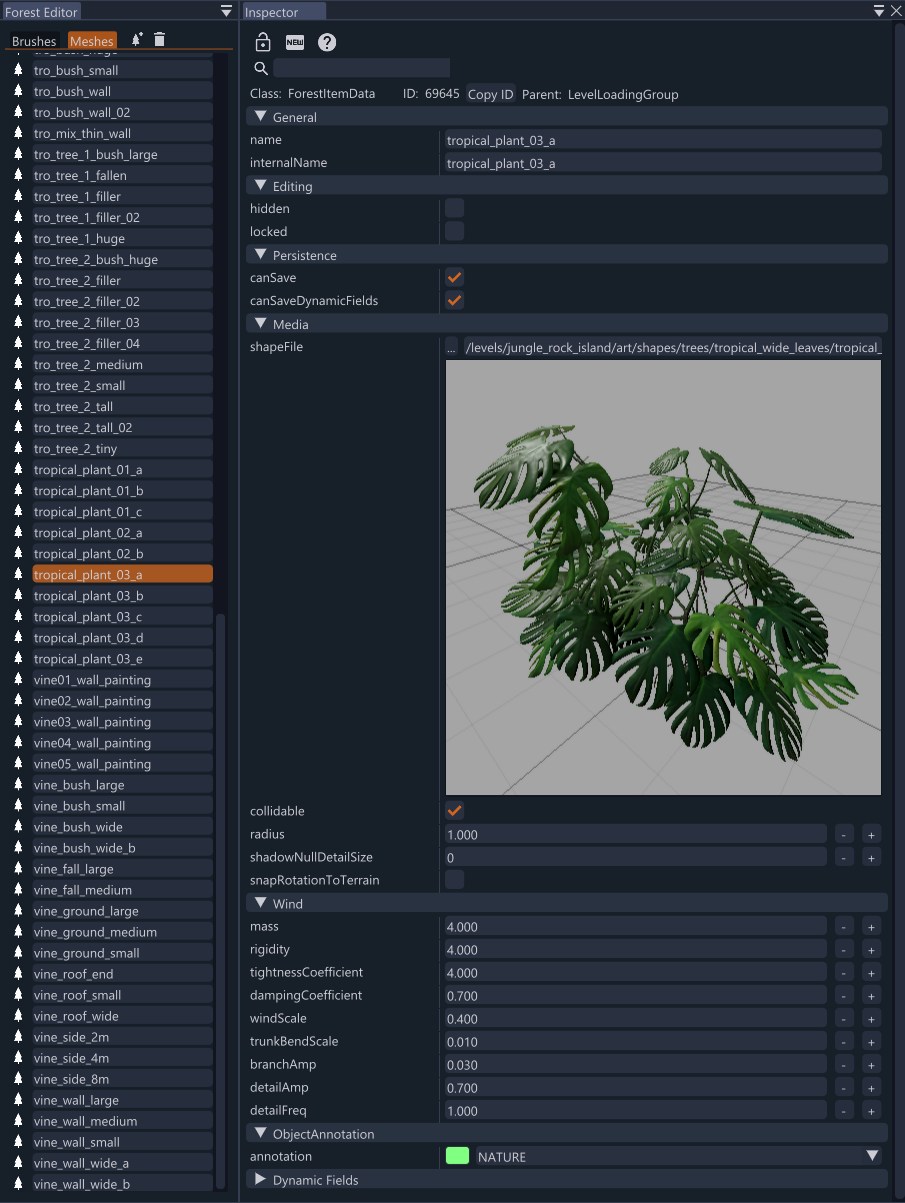
- When the Meshes list is setup the modder can move to Brushes tab and add single or group of brushes that can control through selection per placement
- Select one or more Brushes to place more forest objects at once and control the placement amount through Size of the brush and Density sliders
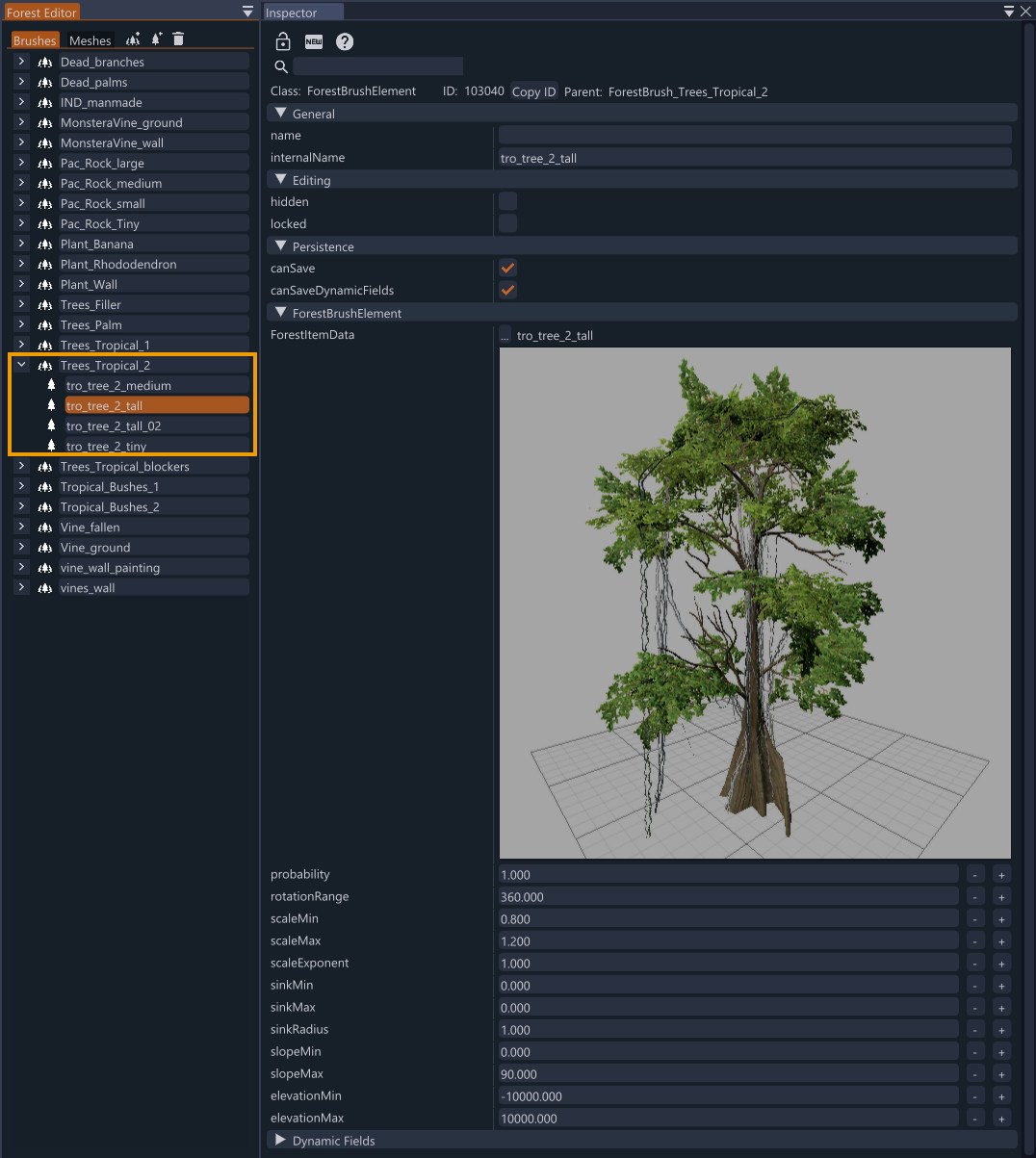
 Forest brush size and density controls
4.6 Performance guidance
- Limit unique species and materials in any given view
- Favour atlases for small plants and clutter to reduce draw calls
- Balance density against readability; leave sightlines along roads and key vistas
4.7 Data locations
- Vegetation meshes: /YourMap/art/shapes/trees for map‑specific items
- The managed forest item list is saved in
managedItemData.json: /YourMap/art/forest - Per-item placement data is saved as
*.forest4.jsonfiles in /YourMap/forest
4.8 Common issues
- Over‑dense areas causing frame drops
- Floating or buried assets due to pivot issues or terrain changes
- Repetition patterns visible from elevated viewpoints
See also: Forest format , Forest brush .
Last modified:
June 24, 2026
Was this article helpful?