Interface
Tool window layout
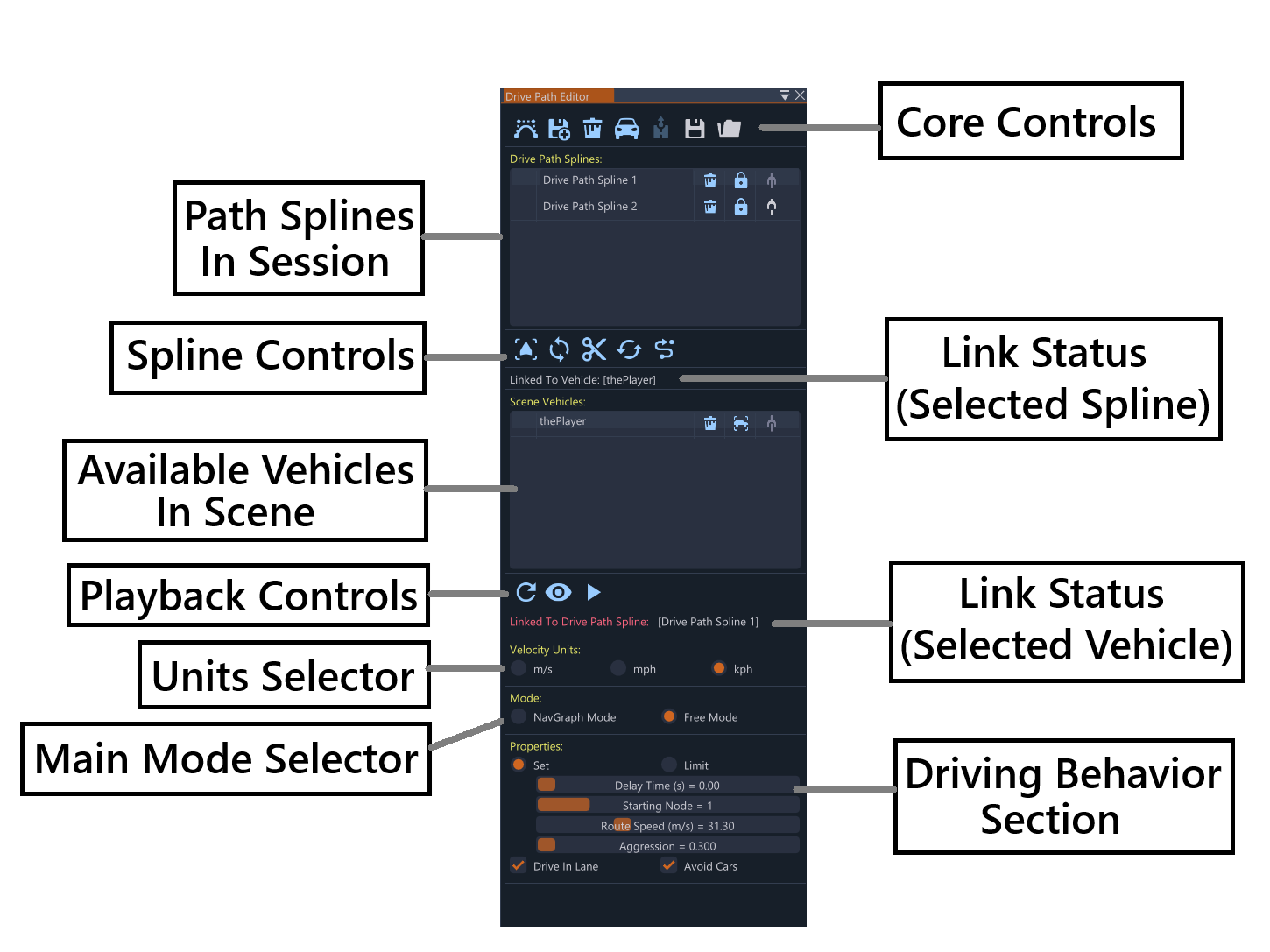
Main Tool Controls Section
The top row contains core operations:
- Add New Drive Path Spline: Creates a new drive path spline in the scene. The mouse cursor changes to purple, allowing the user to click on the map to place nodes and draw the driving path
- Import from PNG Mask: Loads drive paths from exported PNG mask files. Useful for importing previously created paths or sharing paths between sessions
- Remove All Drive Path Splines: Clears all drive path splines from the session. This action cannot be undone
- Toggle Speed Targets/Speed Limits: Quick-switch between Speed (v) and Limit (vl) when Speed Profile is already enabled on a Free Mode spline. Use the Speed Profile radios in Properties to enable bars for the first time
- Tool Rigid Translation/Lock Toggle: Switches between free and rigid translation modes. Free mode allows normal movement, while rigid mode locks the spline for precise editing
- Save Session to Disk: Exports the current session to a JSON file, including all splines, vehicles, and their linking relationships
- Load Session from Disk: Imports a session from a JSON file, restoring the complete state of splines, vehicles, and links
Drive Path Splines Section
Lists all drive path splines in the current session. Each row contains:
- Spline Name: Editable text field for the spline identifier
- Remove Spline Button: Deletes the specific spline
- Enable/Disable Toggle: Controls whether the spline is active
- Link/Unlink Button: Connects or disconnects the spline to/from the selected vehicle
Buttons underneath operate on the selected spline:
- Go to Spline: Moves the camera to focus on the selected spline
- Flip Spline: Reverses the spline direction, which also flips the velocity profile
- Split Spline: Divides the spline at the selected node, creating two separate splines
- Simplify Spline: Reduces node count while preserving spline shape
Link status below the list shows whether the selected spline is linked to a vehicle.
Scene Vehicles Section
Lists vehicles in the scene. Each row contains:
- Vehicle Name: Identifier for the vehicle in the scene
- Remove Vehicle Button: Removes the vehicle from the scene
- Go to Vehicle Button: Moves the camera focus to the vehicle
- Link/Unlink Button: Connects or disconnects the vehicle to/from the selected path spline
Link status below the list shows whether the selected vehicle is linked to a path spline.
Playback Controls Section
- Refresh Vehicle List: Recomputes the list of available vehicles in the scene, useful after adding or removing vehicles outside the tool
- Toggle Spline Ribbon Visibility: Shows/hides the spline ribbons during playback
- Play/Stop Toggle: Starts or stops AI driving for all linked vehicles in the session
- Start/Stop Recording Vehicle: Records vehicle movement to create a new spline (only available when the vehicle is not linked)
Mode Settings Section
Velocity display units:
- m/s: Meters per second
- mph: Miles per hour
- kph: Kilometers per hour (default)
Trajectory type:
- Free Mode: Default — draw paths anywhere on the map without restrictions (script trajectory)
- NavGraph Mode: Uses existing navigation data to create paths which follow road networks (wpTargetList trajectory)
Properties Section
Speed Profile / Route Speed Mode — radio groups sent to ai.driveUsingPath. See Overview → Speed control
for what each mode does.
- Off / Speed (v) / Limit (vl) — per-node; Limit is Free Mode only
- Off / Set / Limit / Legal — route-level; Route Speed slider hidden when Off
Driving behavior parameters:
- Delay Time Slider: How long the AI waits before starting to drive (in seconds)
- Starting Node Slider: Which node on the path the AI begins from
- Route Speed Slider: Visible only when Route Speed Mode is not Off; sets the route speed in meters per second
- Aggression Slider: Driving style from conservative (0.3) to aggressive (1.0)
- Num Laps Slider: Visible when the spline is looped; sets how many laps the AI drives
- Drive in Lane Checkbox: NavGraph Mode only; when enabled, AI follows correct side of the road and respects road direction
- Avoid Cars Checkbox: When enabled, AI is aware of other vehicles and avoids collisions
A warning appears when a looped NavGraph spline has multiple laps and the last waypoint does not match the starting node.
Last modified:
July 30, 2026
Was this article helpful?