Overview
What is this tool?
The Drive Path Editor provides a workspace for building, previewing, and editing AI driving routes. From the tool window, the user can add new path splines, import routes, and manage vehicle <-> path links. When vehicles and paths are linked, playback drives linked vehicles along their paths. The tool supports free-form path drawing on any map and waypoint-constrained paths on maps which have navigation graphs.
Practical buttons, checkboxes, and sliders control driving behavior per path — aggressiveness, lane behavior, delayed starting, and velocity profile editing with the mouse.
In Free Mode, paths can be drawn and edited easily with the mouse. In NavGraph Mode, the tool renders the navigation graph and the user chooses waypoints to form a path, which can be edited later.
What you can create
Key concepts
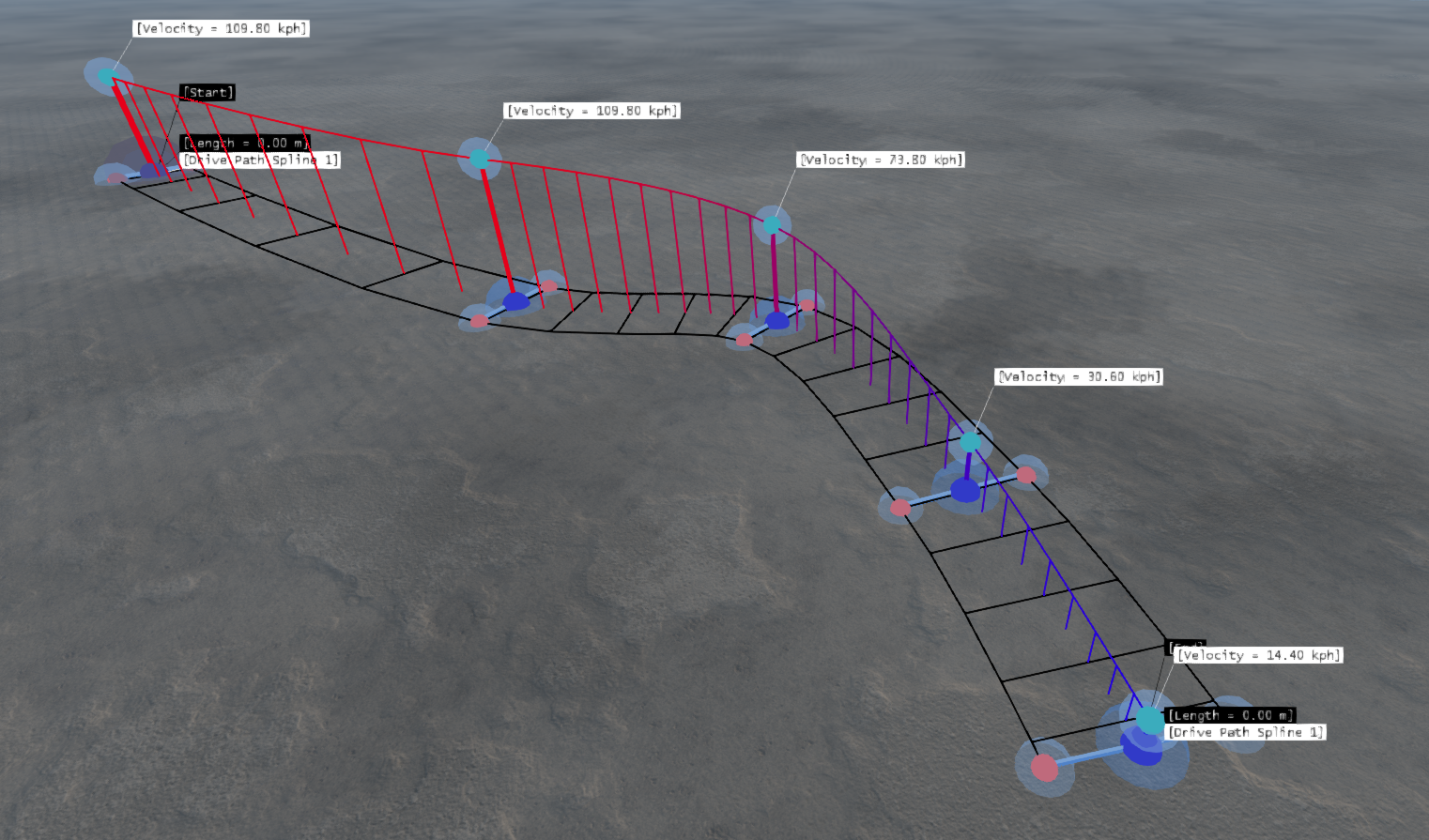
Splines: Editable paths that define AI driving routes.
Nodes: Points along a spline, positioned with the mouse to control shape.
Rib Handles: Left/right controls at each node; drag to adjust path width.
Bar Handles: Vertical controls at each node when Speed Profile is Speed (v) or Limit (vl); drag to set per-node targets or per-edge limits.
Vehicle <-> Path Links: Connect a vehicle to a path spline to enable AI playback along that route.
Free Mode: Free-form drawing on any map (script trajectory).
NavGraph Mode: Waypoint selection on the navigation graph (wpTargetList trajectory). For looped paths with multiple laps, the last waypoint must match the starting node.
Driving Behavior: Aggressiveness, lane behavior, delayed starting, and route speed — configured in Properties.
Undo/Redo History: All edits are recorded for safe experimentation.
Speed control
Speed Profile (per-node) and Route Speed Mode (route-level) are independent. Unless Speed Profile is Speed (v) or Route Speed Mode is Set, the AI determines speed automatically from path geometry, limits, and other settings.
Speed Profile
- Off (default): AI chooses automatically; no bar handles; no per-node data sent
- Speed (v): Explicit per-node speed targets via bar handles
- Limit (vl): AI chooses up to per-edge caps via bar handles; Free Mode only
Route Speed Mode
- Off (default): AI chooses automatically; Route Speed slider hidden
- Set: Explicit global speed target; AI tries to hit Route Speed exactly
- Limit: AI chooses up to cap; does not exceed Route Speed
- Legal: AI chooses within road limits; respects
roadSpeedLimitand/orvlupper bounds
Recording a path sets Speed Profile to Speed (v) and Route Speed Mode to Off.
Was this article helpful?